To attach a PDF file of the relevant record when sending an email through a workflow, follow these steps:
- When configuring the “Send Email” action within the workflow, ensure that the “Include Transaction” checkbox is selected.
- Make sure to select the file type as PDF.
By doing so, the system will automatically attach the PDF document associated with the specific transaction record to the email being sent.
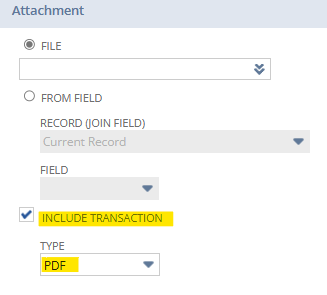
By checking the “Include Transaction” option and specifying the file type as PDF in the workflow’s email action settings, you enable the system to seamlessly attach the corresponding PDF document to the outgoing email. This ensures that recipients receive the relevant transaction details conveniently within the email communication.