Integrating NetSuite SuiteAnalytics Connect with Power BI allows you to visualize and analyze NetSuite data seamlessly. This guide walks you through the setup process using the 64-bit MySQL ODBC connector.
? Prerequisites
- NetSuite account with SuiteAnalytics Connect enabled
- Power BI Desktop installed
- 64-bit MySQL ODBC Connector (download from MySQL official site)
- Administrative access to configure roles and permissions in NetSuite
? Step 1: Enable SuiteAnalytics in NetSuite
- Log in to your NetSuite account.
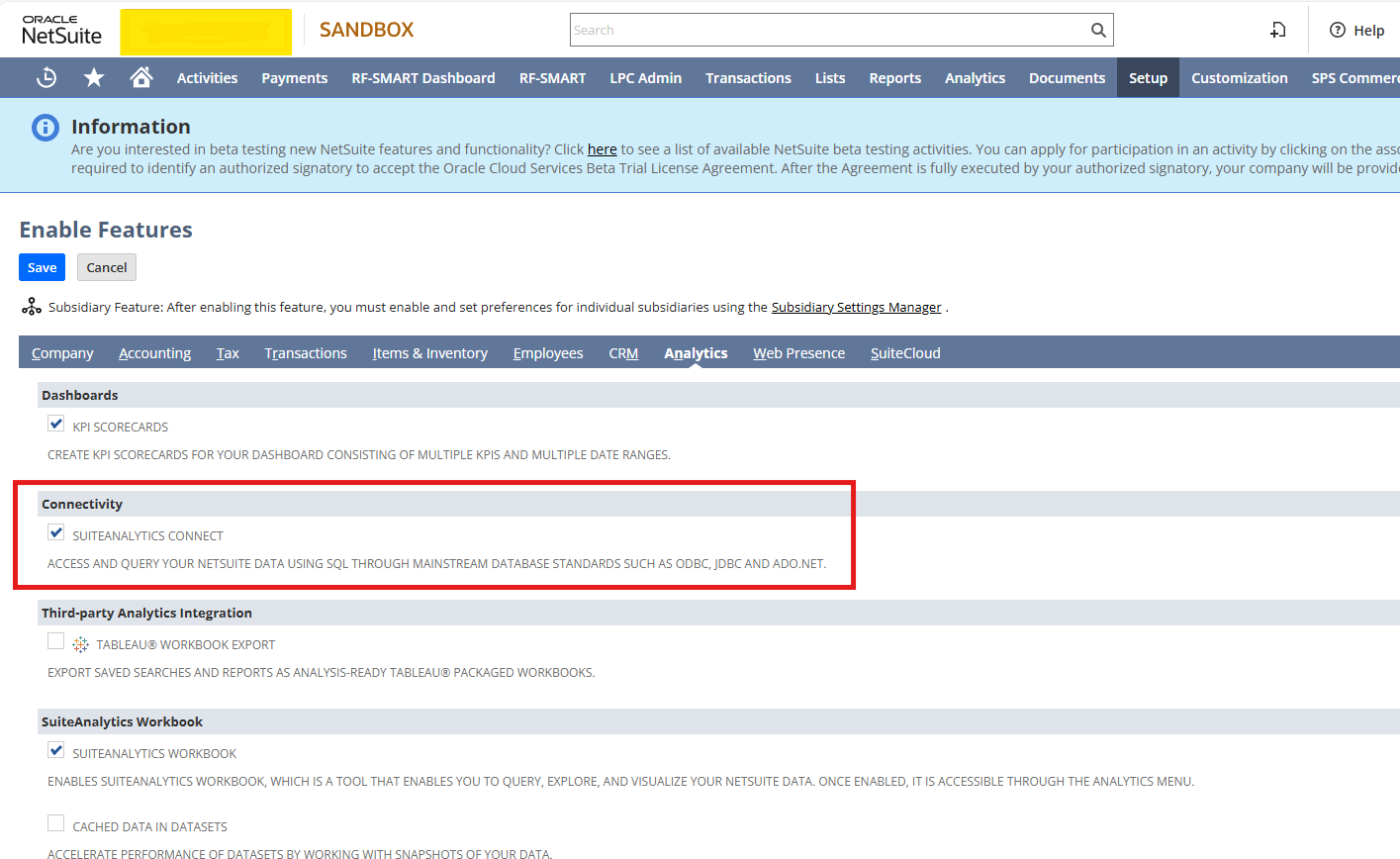
- navigate to Setup -> Company -> Enable features
- Enable the SuiteAnalytics Connect feature.
? Step 2: Install ODBC driver
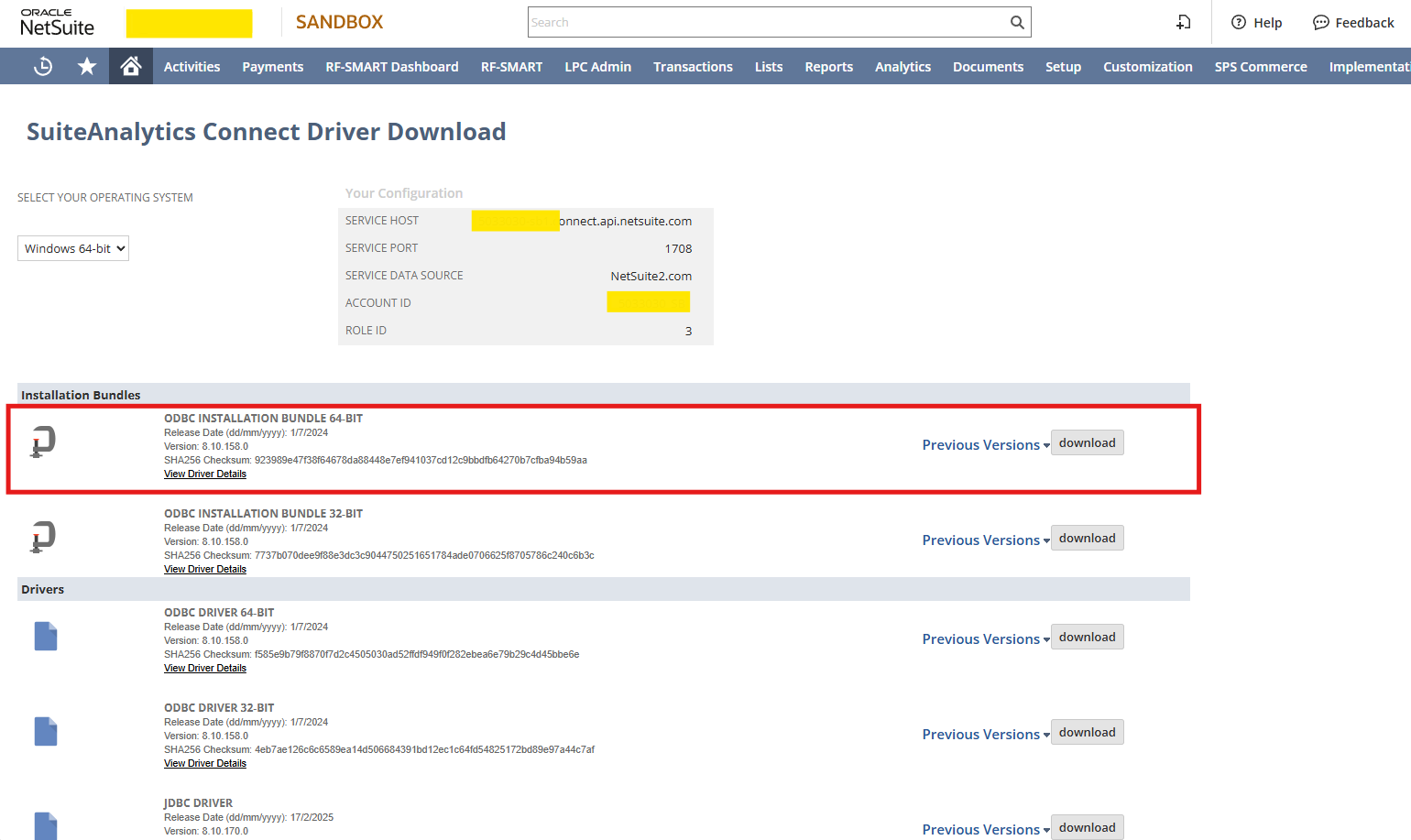
- Navigate to Settings Portal -> Set Up SuiteAnalytics Connect.
- Download and install the ODBC Installation Bundle (64-bit) provided by NetSuite.
? Step 3: Create a Role Without 2FA
ODBC authentication relies on username and password. Roles requiring two-factor authentication (2FA) will cause connection errors.
- Create a new role in NetSuite.
- Assign the following permissions:
- SuiteAnalytics Connect
- SuiteAnalytics Connect – Read All
- In the ‘Two-Factor Authentication Roles’ Ensure the role does not have:
- Mandatory 2FA
- Two-Factor Authentication Required
? Step 4: Configure ODBC Connector
- Open the ODBC Data Source Administrator (64-bit) on your system.
- Select the NetSuite DNS created during installation.
- Enter the credentials exactly as shown in the SuiteAnalytics Connect page.
- Click Test Connect to verify the connection.
? Step 5: Connect Power BI to NetSuite
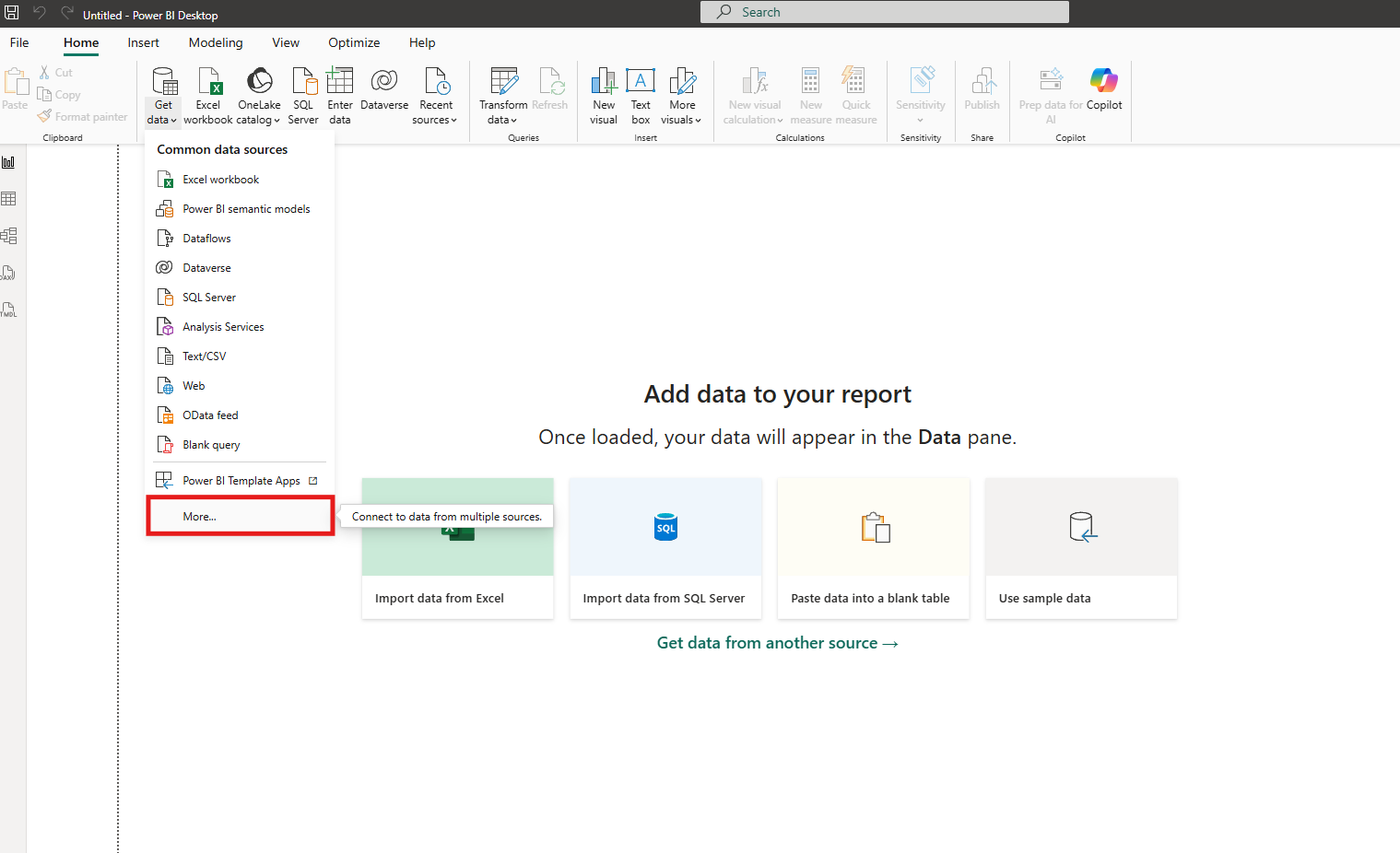
- Launch Power BI Desktop.
- Go to Get Data -> More.
- Select ODBC as the data source.
- Choose the corresponding NetSuite DNS.
- (Optional) Use the Advanced Options to run custom SQL queries.
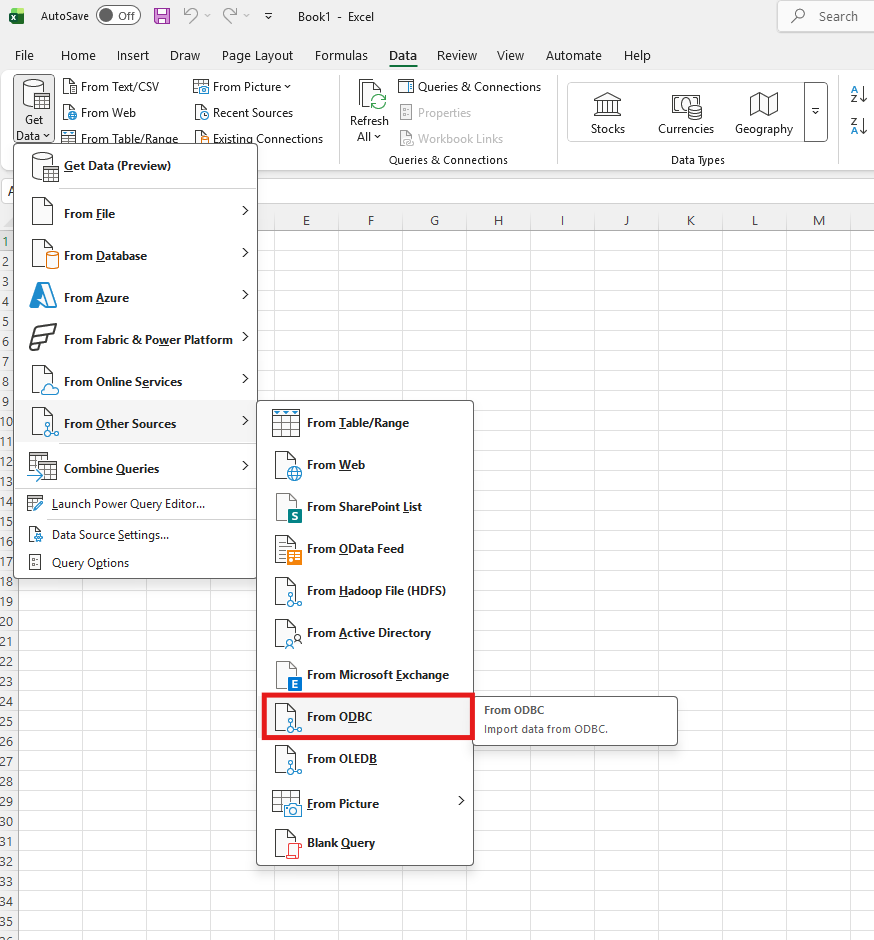
You can use the same method to connect NetSuite to Excel using ODBC.
? Sample SQL Query
Here’s a simple query to test your connection and fetch customer data:
SELECT TOP 10 id, firstname, lastname, email FROM customer WHERE isinactive = 'F';
This query retrieves the first 10 active customers with their ID, first name, last name, and email.
? Best Practices
- Always test the connection in ODBC before opening Power BI.
- Use a dedicated NetSuite role for analytics to avoid conflicts with operational roles.
- Document your DNS settings and credentials for traceability.
- Start with small queries to validate performance before scaling to larger datasets.
? Conclusion
By following these steps, you can successfully connect Power BI or EXCEL to NetSuite using the ODBC connector. This integration unlocks the ability to run advanced analytics, build dashboards, and gain deeper insights into your NetSuite data.