To define an advanced Login Audit Trail search:
- Go to Setup > Users/Roles > User Management > View Login Audit Trail.
- Check the Use Advanced Search box.
- Click the Criteria subtab to define filters.
- Select a field from the Filter dropdown list, select a value in the field popup, and click Add, repeating to define additional filter fields.
- Available filter fields include: Date, formulas, IP Address, Role, User, Employee fields, Role fields, and in some cases Customer, Partner, and/or Vendor fields.
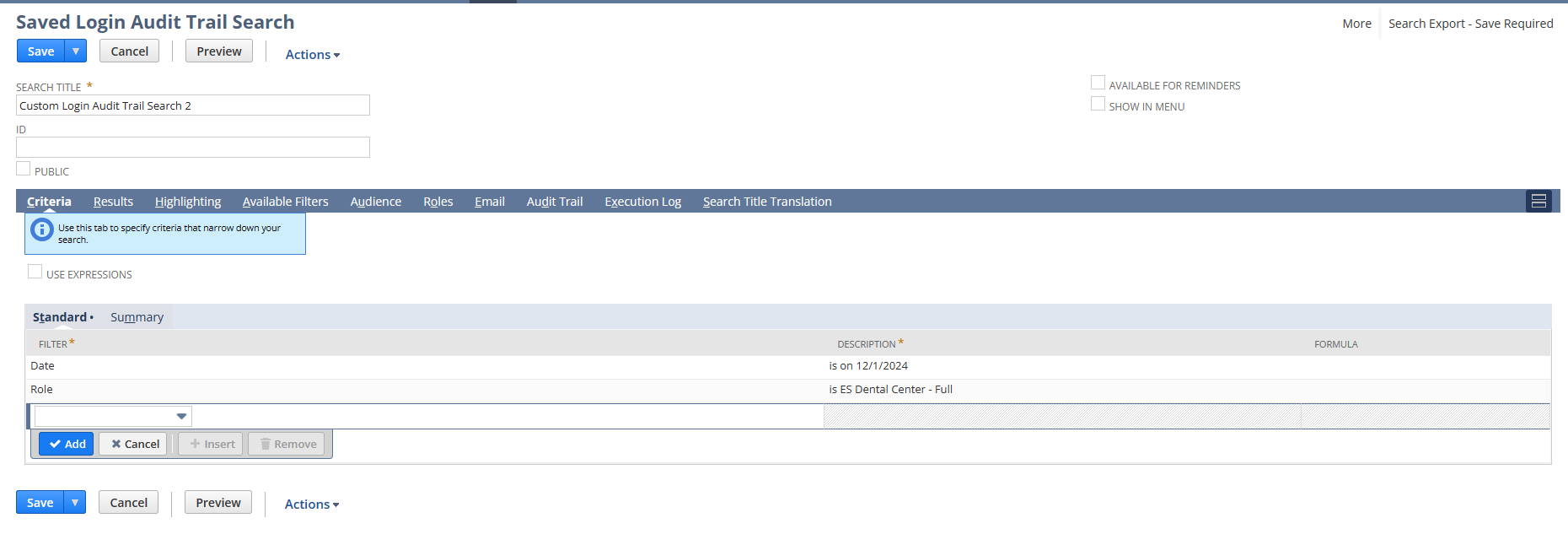
4.Click the Results subtab to define columns to appear in search results.
- Select a field from the Field dropdown list and click Add, repeating to define additional results fields.
- Available results fields include: Date, Email Address, formulas, IP Address, Request URI, Role, Security Challenge, Status, User, User Agent, Employee fields, Role fields, token-based Authentication fields (Detail, Token-based Access Token Name, Token-based Application Name) and in some cases Customer, Partner, and/or Vendor fields.
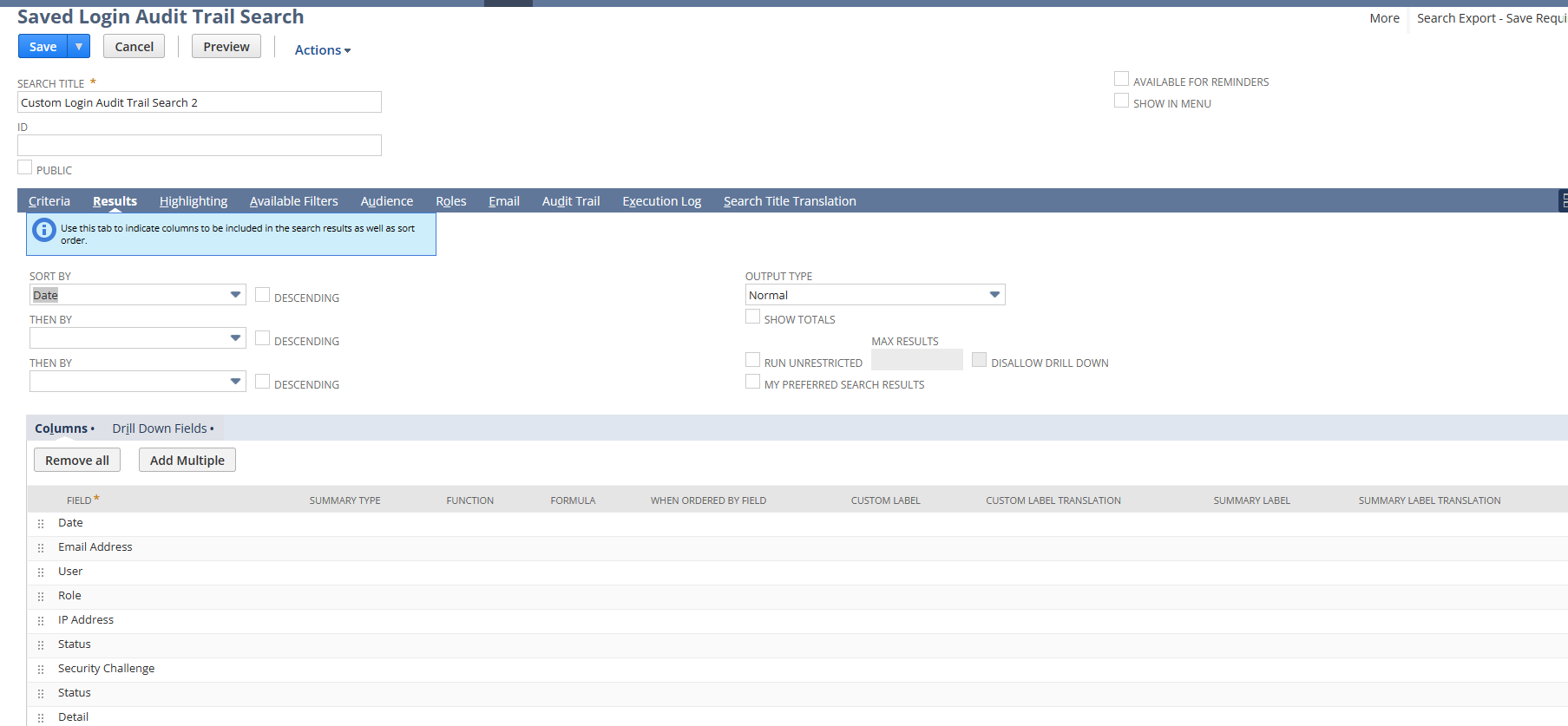
- You also can set up sorting and summarizing options for results.
5.After you have defined criteria and results display options for an advanced search, you can:
- Click Submit to run the search and open a NetSuite page with a list of results.
- Click Export to run the search and save results to a .csv file that you can save to disk or open on your desktop.
- Click Create Saved Search to open a saved search page that includes the criteria and results options you defined.