Scenario
In this example, an end user received an email alert with the email subject “Projects Created Last Month” and needs the alert updated. Now, you need to find the saved search in order to make the updates. The only information you have is the subject of the email they received and the contents of that email. The results of the search were not sent as an Excel file. You verified that there are no saved searches with the exact title of the subject, so this indicates that the subject entered was custom.
Solution
Step 1: Create a new Analytics Audit Trail search

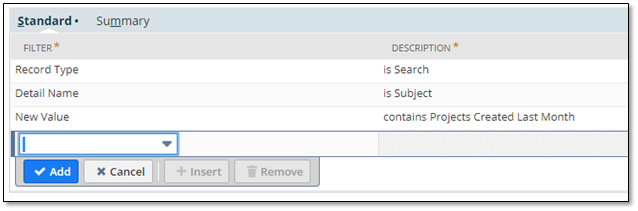
Step 2: Add the following under the Criteria Tab
- Record Type = Search
- Detail Name = Subject
- New Value contains (Copy and Paste in the Subject of the email alert that the end user received)
- Note: If the subject of the email contains search results fields, do not copy and paste that part of the subject. For example, if the subject was “Project Created Last Month” followed by the ID of a project, only copy and paste the “Project Created Last Month” text. This is because we are searching through saved search audit trails. The audit trail will not contain the result of the field that was entered into the subject field, it will only have the field ID itself.
Step 3: Add the following under the Results Tab
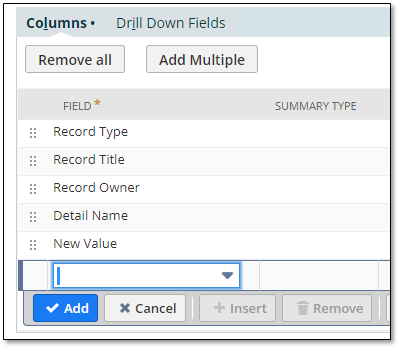
- Record Type
- Record Title
- Record Owner
- Detail Name
- New Value
Step 4: Run the Search to see the Results

- The Record Title column reveals the title of the saved search that sent the email alert that contained the subject “Projects Created Last Month”. Now we know the title of the search that we need to update!
- Note: If the Subject of the email alert contains the same information as the subject entered for other saved search email alerts, the results may return multiple saved searches. If this happens, this at least boils it down to just a few searches that could be the one you’re looking for. Even if you have to look into a few different searches, this method still saves an admin time, rather than having to comb through many saved searches.