To create a saved search in NetSuite to get the count of invoices related to a sales order, you will need to follow these steps:
- Navigate to Saved Searches:
- Go to
Reports>Saved Searches>All Saved Searches>New. - Select the Search Type:
- Choose
Transactionas the search type since you are dealing with sales orders and invoices. - Criteria Tab:
- Under the
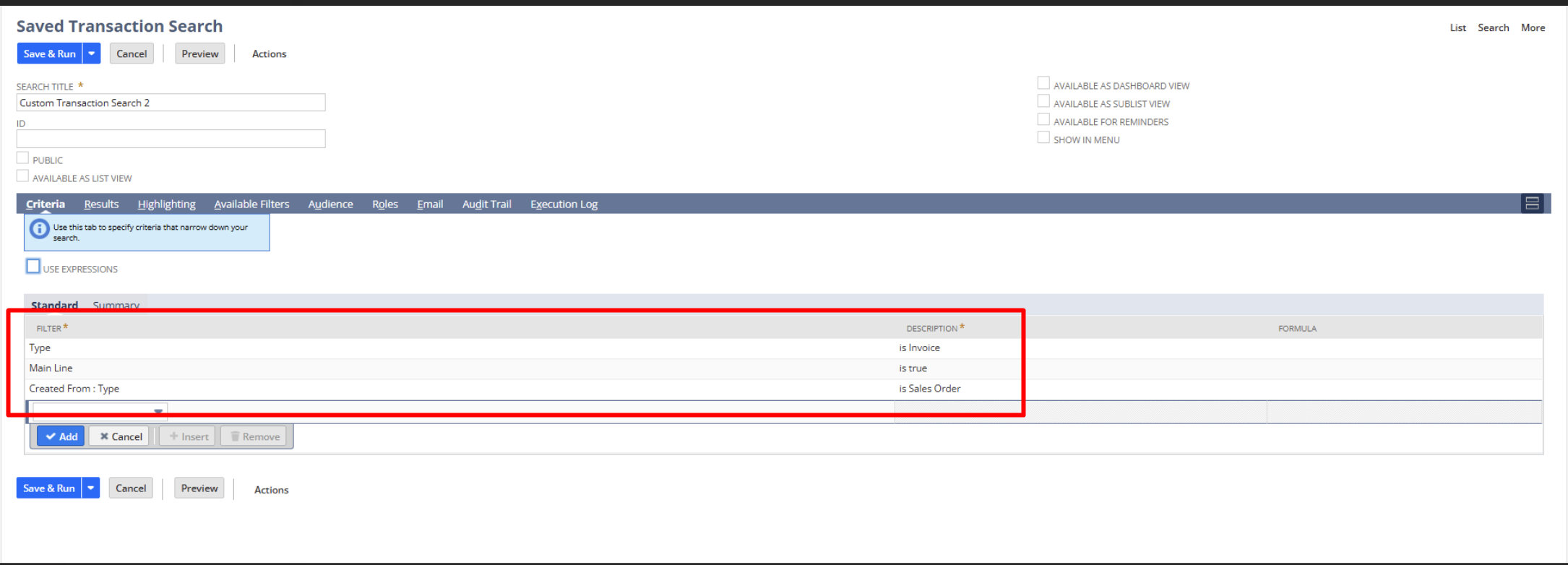
Criteriatab, add the filters to narrow down your search to the specific transactions (sales orders and invoices). - Filter:
Type - Value:
isInvoice - Filter:
Main Line - Value:
isTrue(to ensure you are only counting the main line of invoices) - Filter:
Created From Type - Value:
Sales Order - Results Tab:
- Under the
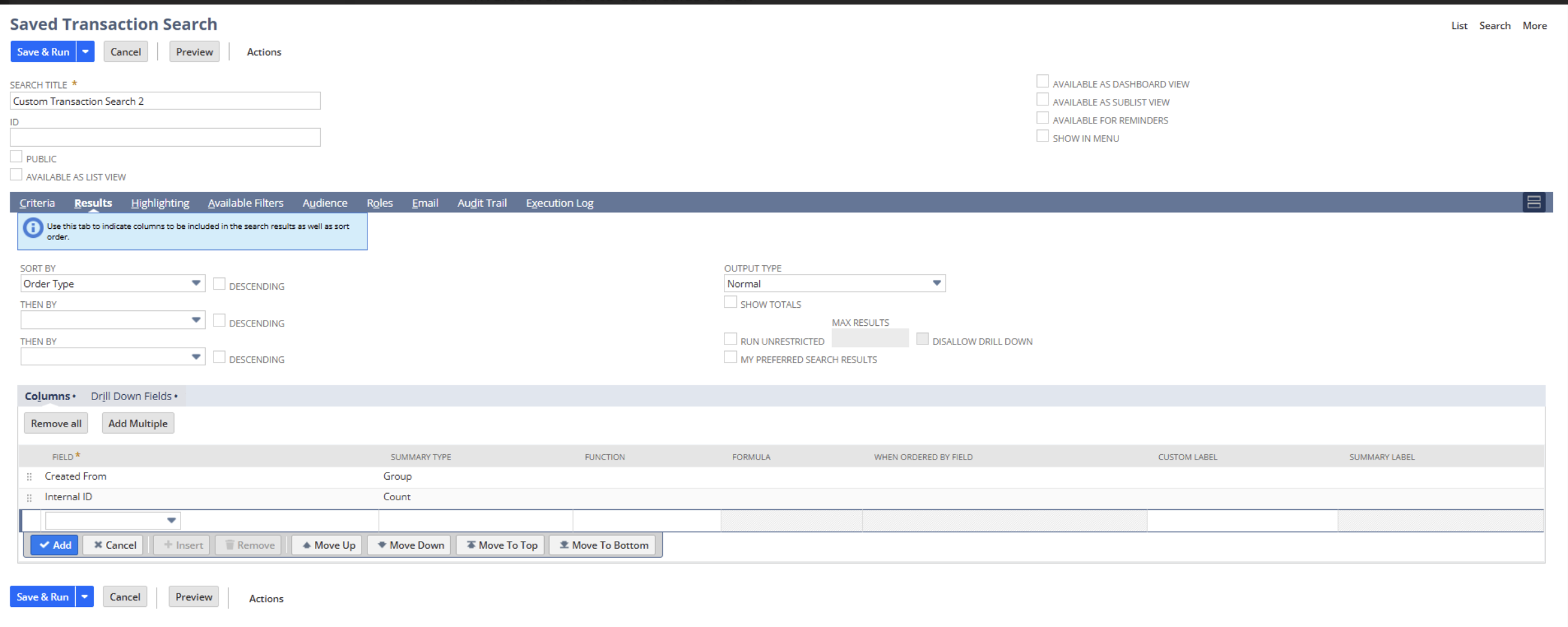
Resultstab, configure the columns to display the information you need. - Field:
Created From - Summary Type:
Group - Field:
Internal ID - Summary Type:
Count - Sorting/Additional Filters (Optional):
- If you need to sort or further filter your results, you can add additional criteria or sort options.
- Save and Run the Search:
- Click
Save & Runto save the search and display the results.
Detailed Steps:
- Navigate to Saved Searches:
- Go to
Reports>Saved Searches>All Saved Searches>New.
- Select
Transactionas the search type. - Criteria Tab:
- Click on the
Criteriatab.
Add the following filters:
Result tab
- Save and Run:
- Give the saved search a name, e.g., “Count of Invoices Related to Sales Orders”.
- SClick Click Save and Run
This saved search will provide you with a count of invoices for each sales order, allowing you to easily see the number of invoices related to each sales order.