By default, in the plan we can uses due dates when scheduling issues. If you’d like to use custom dates in our plan, we need to first add the custom date field to the schemes of the projects associated with our issue sources.
Once that’s been configured, we can then select our custom date.
To change which dates our plan uses:
- Select Plan settings from the left side navigation.
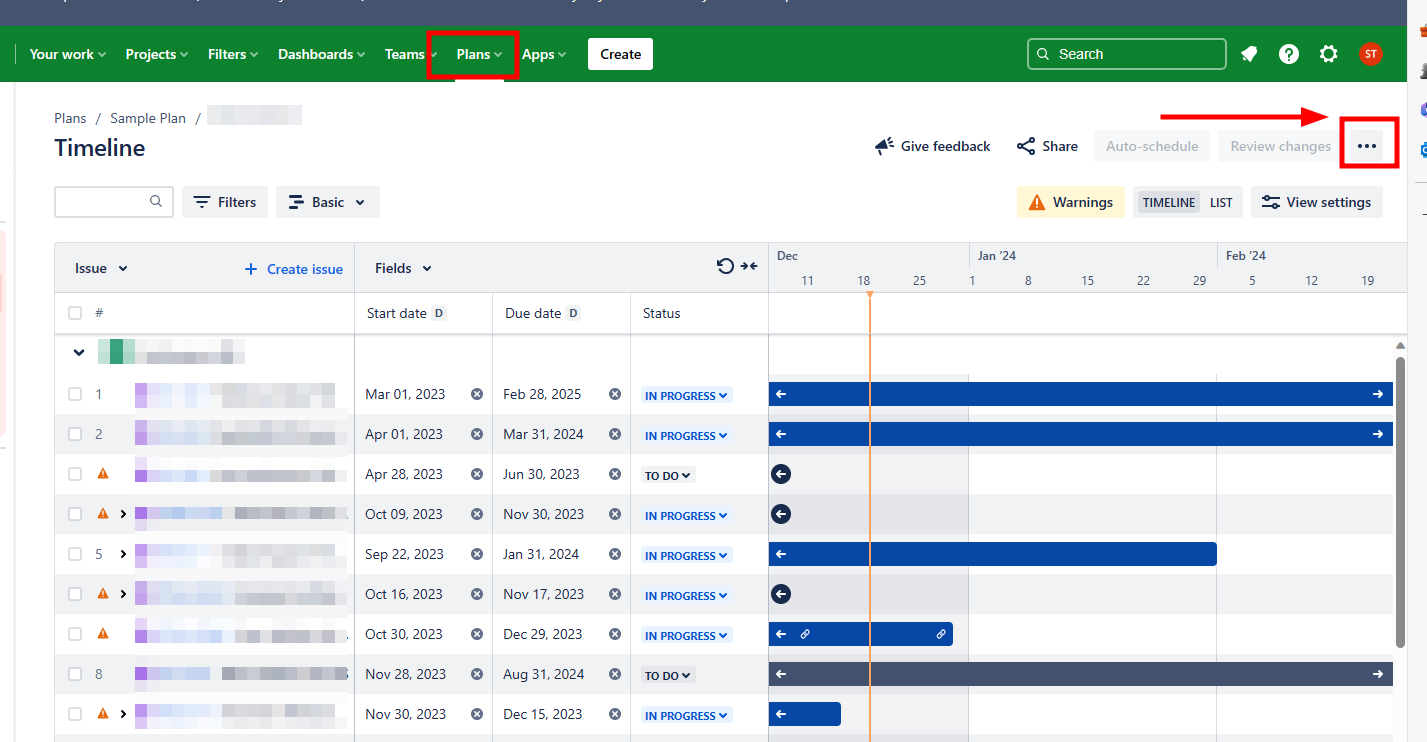
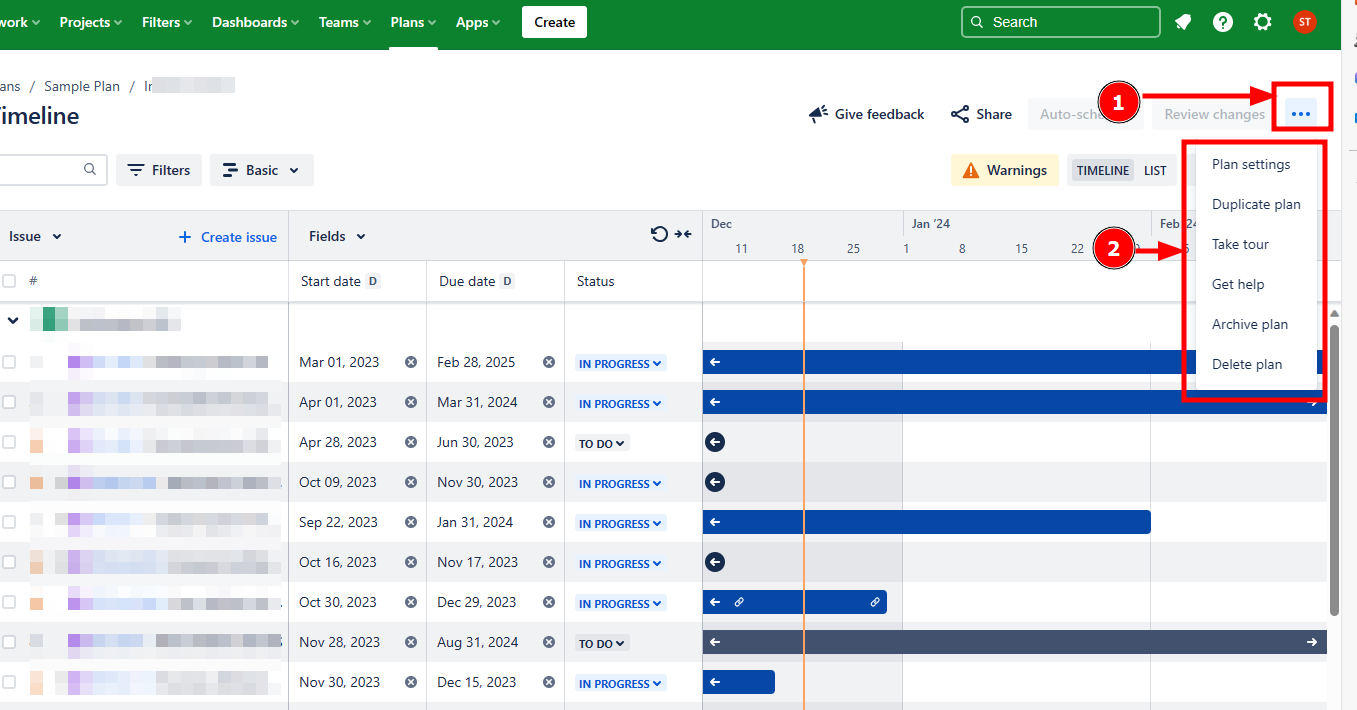
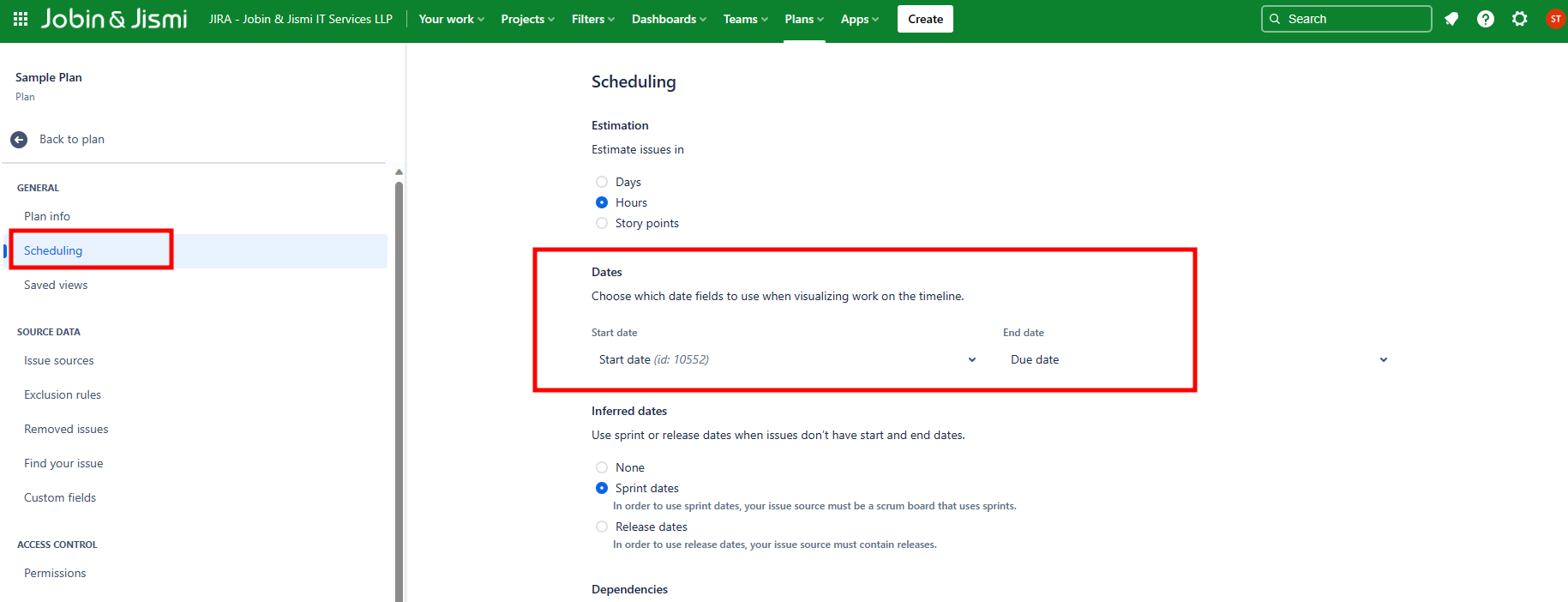
- In the Scheduling tab under the Dates section, use the drop-down menus to select what to use as the start and end dates of your issues. Custom dates that you’ve already configured are listed alongside their corresponding IDs for easier identification.
On your timeline, the custom dates are marked with a lozenge D in the Date column. If your dates have S or R next to them, then your plan is inferring dates based on sprint and release assignments.